Summary
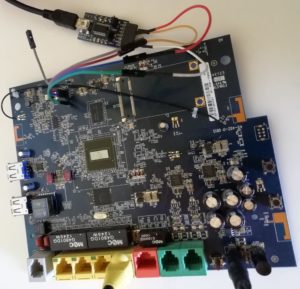 After switching my Internet Service Provider, I had a spare router that looked like could be put to good use, but was locked with Eircom. A bit of investigation revealed the unit was in fact a ZyXEL VMG8324-B1N router, still very capable. ZyXEL has some firmware ready for it, just need to find a way to unlock the unit and flash the current firmware on it.
All credit goes to Dermot McDonnell who has documented the procedure very well and Tony Cool for the password generator. Nothing really complicated, but some material was quite difficult to find or URL not working anymore, like http://www.tonycool.es/zyxel/zynpass_en.htm, so I thought I’d put it all here for future reference.
Requirements
To unlock the unit, the following is required: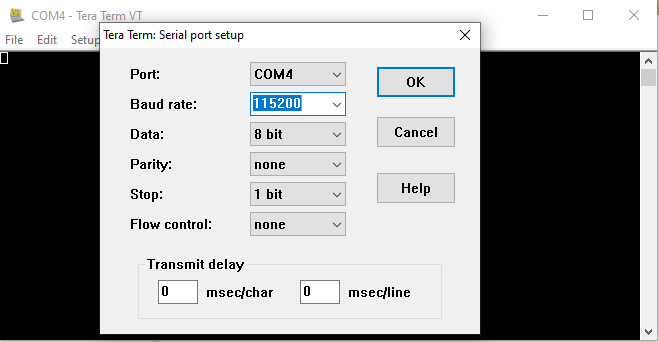
- USB to serial converter, 3.3V level. Connect it to the computer and note its COM port number.
- An Ethernet cable
- A terminal software able to transfer files with xModem (ie TeraTerm on Windows). Open it and set the serial connection properties to the COM port of the converter as noted above, 115200 baud, 8 bit and no parity.
- ZyXEL VMG8324-B1N bootloader: cfe63268nand128_Release. Download and unzip it in a folder.
- Latest firmware for the router from the ZyXEL product page. At the time of writing, it is version 1.00(AAKL.28)CO. Download and unzip it in the same directory as the bootloader.
Procedure
Basically, we need to connect to the console port of the router (serial connection) to the computer, stop the normal boot process, unlock the command set, update the bootloader via the serial connection, upload the new firmware over Ethernet and reset the configuration.
Connections
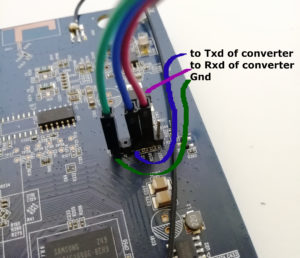 First, remove the 4 screws and open the router. Remove 2 more screws to remove the back panel. This will expose the pins to connect the USB to serial converter. We need 3 wires: GND, Txd and Rxd.
Set the computer IP to 192.168.1.100 and connect the Ethernet cable to any of the LAN port (Yellow ports).
Connect the power supply
Update bootloader
With the console connected to the computer and the terminal software open and connected to the USB serial port, power up the router with its power switch and press a keyboard key until the CFE prompt is displayed. Hitting a key will stop the normal boot process and present the bootloader prompt.
ELO
CPUI
...
L12F
MAIN

CFE version 1.0.38-112.118 for BCM963268 (32bit,SP,BE)
Build Date: 05/10/2013 (wood@ubuntu)
Copyright (C) 2000-2011 Broadcom Corporation.

NAND flash device: name TOSHIBA TC58NVG0S3E, id 0x98d1 block 128KB size 131072KB
External switch id = 53125
Chip ID: BCM63168D0, MIPS: 400MHz, DDR: 400MHz, Bus: 200MHz
Main Thread: TP0
Memory Test Passed
...
*** Press any key to stop auto run (1 seconds) ***
Auto run second count down: 1
 Port 4 link UP
1
web info: Waiting for connection on socket 0.
CFE>
Now we have a prompt, check the manufacturer data by typing atsh in the terminal
CFE> atsh
FW Version : 1.32(VQG.4)D0
External Version : 1.00(AAHA.4)D0
Bootbase Version : V1.59 | 02/01/2013 17:48:02
Vendor Name : MitraStar Technology Corp.
Product Model : DSL-2492GNU-B1B
Serial Number : S130000000000
...
Other Feature Bits :
4d 53 60 09 00 00 00 00-00 00 00 00 00 00 00 00
00 00 00 00 00 00 00 00-00 00 00 00 00 00
*** command status = 0
We can see it identifies itself as a MitraStar DSL-2492GNU-B1B. List the command set by typing athe in the terminal
CFE> athe
Available commands:
ATSE show the seed of password generator
ATEN set BootExtension Debug Flag
...
ATMB Use for multiboot.
ATHE print help
For more information about a command, enter 'help command-name'
*** command status = 0
We have a list of 14 commands. Next step is to extend this by unlocking the router bootloader. It uses a seed from the router, and a password. We can generate the seed using the atse command, with the model name from the atsh result, in my case DSL-2492GNU-B1B. Get the seed for the router by typing atse DSL-2492GNU-B1B in the terminal.
CFE> atse DSL-2492GNU-B1B
00012ACFB3E5
OK
*** command status = 0
With this code, we can change the BootExtension flags and extend the command set. Type aten 1, password in the terminal, were password is the 8 digit code from the calculator above.
CFE> aten 1, 6887841E
OK
*** command status = 0
To check we have extended the command set, type athe in the terminal again. This time, we have much more commands (3 pages). Time to reset the router configuration. In the terminal, type atbt 1 to enable write mode, then atwz EC43F64615EC, 01, 01, 00, 0C. The string after atwz is the MAC address of the router. You can find it on the label at the back of the router box.
CFE> ATWZ EC43F6470F58, 01, 01, 00, 0C <- NB: EngDebugFlag MUST be 01
MAC address : EC:43:F6:46:15:EC
Country Code : 01
EngDebugFlag : 01
FeatureBit : 00
MAC Number : 0C
*** command status = 0
CFE>
Time to upload the new bootloader. Enable write mode again with atbt 1, then start the xModem upload mode with atub.
From TeraTerm, click on the menu File, Transfer, XMODEM and Send.... Select the bootloader cfe63268nand128_Release.bin prepared in the requirements section.
CFE> atub
Starting XMODEM upload (CRC mode)....
CCCSending x.bin, 1024 blocks: Give your local XMODEM receive command now.
Xmodem sectors/kbytes sent: 0/ 0k
Bytes Sent: 131072 BPS:11085
Transfer complete
Receive completed, start to write flash...
OK
Total 131072 (0x20000)bytes received
Flashing CFE:
.
*** Image flash done ***
OK
*** command status = 0
Check the manufacturer data again with atsh.
CFE> atsh

FW       Version       : V1.00(AAKL.28)C0
Bootbase Version       : V1.60 | 05/10/2013 10:23:51
Vendor Name            : ZyXEL Communications Corp.
Product Model          : VMG8324-B10A
Serial Number          : S090Y00000000
First MAC Address      : EC43F64615EC
Last MAC Address       : EC43F64615F7
MAC Address Quantity   : 12
Default Country Code   : FF
Boot Module Debug Flag : 01
RootFS      Checksum   : 3db26396
ImageDefaultChecksum   : 3c8c561b
Main Feature Bits      : 00
Other Feature Bits     :
                4d 53 60 06 00 00 00 00-00 00 00 00 00 00 00 00
                00 00 00 00 00 00 00 00-00 00 00 00 00 00

*** command status = 0
We now have the right manufacturer and model, time to upgrade the firmware.
Upgrade firmware
From the computer, with its IP setup to 192.168.1.100 and the Ethernet cable connected with the router, open a browser at IP 192.168.1.1.
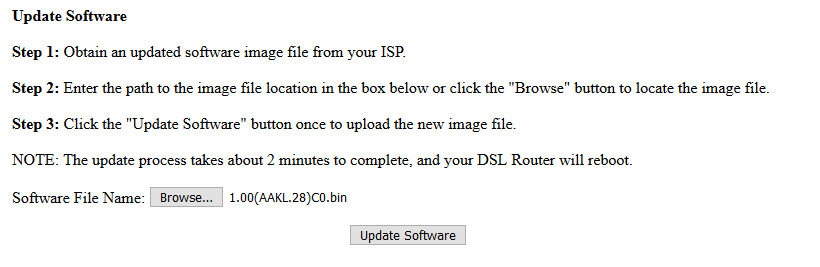 Browse to the firmware file downloaded from the ZyXEL website and unzipped and press
 Update Software.
From the terminal window, monitor the upgrade process, and when the router reboots, interrupt it again by typing a key, which will bring back the bootloader prompt CFE.
Reset configuration
In the terminal, type atbt 1 to enable write mode, then atbp to change the board parameters. Type the information as below, changing the MAC address with the MAC address from the label on the back of the router box.
...
963168MXH_17A ------ 14
Board Id (0-14) : 2
Number of MAC Addresses (1-32) : 12
Base MAC Address : cc:5d:4e:00:00:01 EC:43:F6:46:15:EC
PSI Size (1-128) KBytes : 128
Enable Backup PSI [0|1] : 0
System Log Size (0-256) KBytes : 0
Main Thread Number [0|1] : 0
...
LE88266 -- 5
Voice Board Configuration (0-5) : 1
*** command status = 0
The router will reboot when the changes are made. Again, stop the boot process by typing a key at the terminal. Enable write mode again with atbt 1, and reset to factory default with atbr.
CFE> atbr
Erase persisten storage data? (y/n):y
*** command status = 0
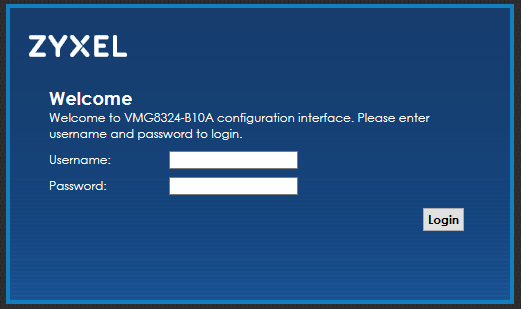 Done, the router is now reset and unlocked. The default login for the router is
 admin and the password is 1234.
With the computer still connected to the router with the Ethernet cable, browse to IP 192.168.1.1 to get to the router login page. Don’t forget to reset your computer IP address if needs be.