
GPSD is used to share accurate time and position. This is helpful for my astrophotography setup, and my time server for the home network. It uses a GPS module connected to the server.
Background
 To get accurate positioning when doing astrophotography, it is important to have precise location and time information of the place we observe from. A GPS provides both, so having this information available on the network at home is, for me, very handy. GPSD is a a small program running on linux platform that does exactly this. I’ll document below my setup.
Solution
In the garden office, I have a small raspberry pi A running. It monitors various sensors, and look after the heating, pond and security of the garden. It is a perfect location to install a GPS module. The setup is fairly straight forward, the only specific configuration is to open GPSD to the home network. By default, it is only available on the host running the GPSD daemon.
Connect the GPS module
For my setup, I had a spare GPS module. It is a Venus GPS module I got a few years ago on Sparkfun. It is serial based, so I will connect it directly to the serial port available on the raspberry pi extension connector. The advantage of the module is that it also provides a PPS output.
A PPS or Pulse-Per-Second signal, provides a very accurate signal every second. I connected it to an input of the raspberry pi extension connector to drive the time server service accurately. It is not a needed by GPSD.
I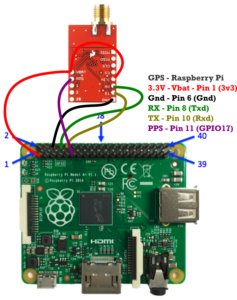 connected the GPS module to the 3.3V power supply from the Raspberry Pi, the serial port and GPIO17 for the PPS signal.
An embedded GPS antenna is connected to the SMA connector of the GPS module. The GPS antenna itself is located behind the wooden cladding of the garden office. It is protected, while having a good view of the sky.
Before you fix the antenna, check you get good GPS fix.
Setup GPSD
GPSD is very easy to install, it is a classic apt command. In a terminal window connected to the server, type
sudo apt install gpsd gpsd-clients
This installs the GPSD daemon, and the clients. Clients make testing and debugging easier.
Now GPSD is installed, we need to configure it. First, we must tell it where to look for the GPS module and to run as a service. This is done with the /etc/default/gpsd configuration file. Type “sudo nano /etc/default/gpsd”.
Set the various line as below:
# Default settings for the gpsd init script and the hotplug wrapper.
# Start the gpsd daemon automatically at boot time
START_DAEMON="true"
# Use USB hotplugging to add new USB devices automatically to the daemon
USBAUTO="false"
# Devices gpsd should collect to at boot time.
# They need to be read/writeable, either by user gpsd or the group dialout.
DEVICES="/dev/ttyAMA0"
# Other options you want to pass to gpsd
GPSD_OPTIONS="-n -b -G"
It basically tells GPSD to start a daemon at boot and look for GPS messages on port ttyAMA0. Next, we need to tell GPSD to listen for network connection on all network interfaces. This is done with the /lib/systemd/system/gpsd.socket configuration file. Type:
sudo nano /lib/systemd/system/gpsd.socket
Change the line from ListenStream=127.0.0.1:2947 to ListenStream=0.0.0.0:2947.
Tell the server to reload the service configuration with sudo systemctl daemon-reload, then sudo systemctl restart gpsd.socket. GPSD is now running, collecting information from the GPS module, and making it available on the local network.